

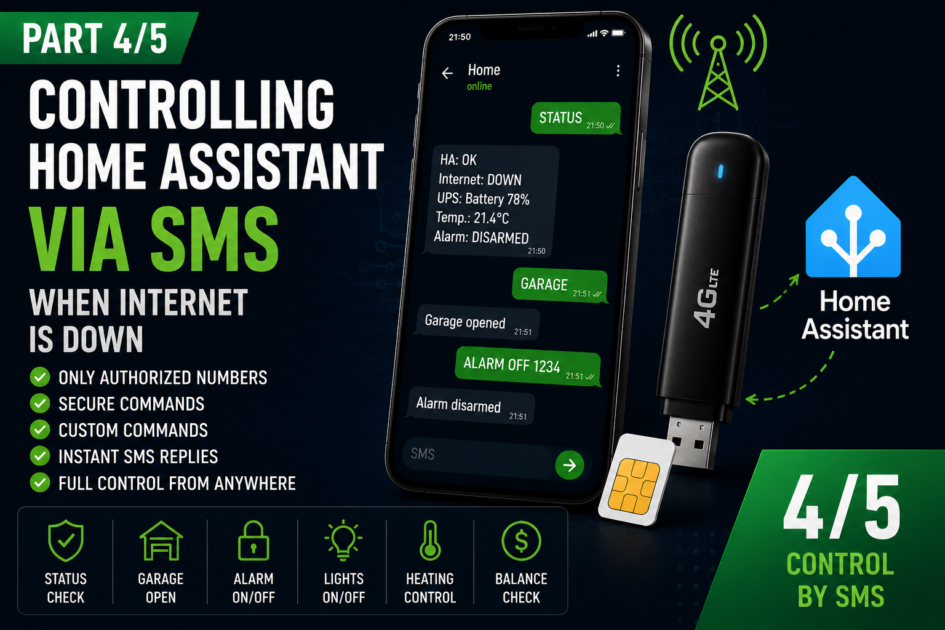

You’re away from home. Internet at home is down. The Home Assistant app won’t connect, the VPN is silent, Nabu Casa is throwing an error. And someone’s standing at the gate who needs to be let in. What do you do?
You text
GATE to the SIM card number in the modem connected locally to Home Assistant. The gate opens, and you get an SMS confirming it. No internet, no cloud, no app. I’m assuming you already have the integration installed from the previous part of the series and SMS sending already tested.⚠️ Before you start
This is an emergency remote, not your everyday interface. Use the app for normal control. SMS steps in when everything else has failed. That distinction matters a lot when you’re designing the security around this.
Five security rules
We’re giving the outside world the ability to control your house through plain SMS, so the rules have to be strict:
🔐 1. Trusted numbers only. Commands only execute from numbers on the trusted list. The integration normalizes the sender’s number and checks it against the list.
🔐 2. Empty list = nobody. If the trusted numbers list is empty, no sender is authorized. No exceptions.
🔐 3. The command has to be exact. The integration compares the whole SMS body as a single command word.
STATUS works, “please give me the status” doesn’t.🔐 4. Add extra protection for dangerous actions. Disarming the alarm only with a code in the message body, opening the gate only within reasonable hours.
🔐 5. Log and confirm. Every attempt from an untrusted number gets logged, every executed command gets a reply SMS.
💡 Being honest about the limits
SMS sender numbers can technically be spoofed, though it’s not trivial on most carrier networks. So treat a trusted number as your first layer, and for genuinely sensitive actions like disarming the alarm, add a code inside the message body too.
📷 [SCREENSHOT: GSM Modem integration options, trusted numbers and custom commands list]
How an SMS command works
SMS: STATUS
    ↓
Integration checks the sender's number
    ↓
Number authorized
    ↓
Command recognized
    ↓
Optional automatic SMS reply
    ↓
Event fired in Home Assistant
At the end of that chain are events, and those are the interesting part for us, since we hook regular automations onto them:
📨
gsm_modem_sms_received for every new SMS,📨
gsm_modem_sms_command for commands from trusted numbers,📨
gsm_modem_command_gate for the custom GATE command (every custom command gets its own event, following the pattern gsm_modem_command_<command>).The
gsm_modem_sms_received event data includes, among other things, sender, message, index and an authorized flag. This event fires for every SMS, including from unknown numbers, which is why the authorized condition is mandatory here.Command events (
gsm_modem_sms_command and gsm_modem_command_<command>) behave differently: the integration only recognizes a command if the sender is already on the trusted list, so these events simply can’t fire for an unknown number. The authorized condition on automations reacting to these events is therefore an extra layer, not a strict requirement, but I leave it in the examples below anyway, since it costs nothing and protects against future changes in the integration.The STATUS command
The integration replies to
STATUS on its own, if SMS replies are enabled. But the built-in reply talks about the modem, and often you’ll want to know more about the house. That’s when you build a separate automation with a richer reply:alias: "HOME - extended STATUS via SMS"
mode: single
trigger:
- platform: event
event_type: gsm_modem_command_status
condition:
- condition: template
value_template: "{{ trigger.event.data.authorized }}"
action:
- action: gsm_modem.send_sms
data:
number: "{{ trigger.event.data.sender }}"
message: >-
HOME {{ now().strftime('%H:%M') }}
HA: OK
Living room temp: {{ states('sensor.living_room_temperature') }} F
Boiler room temp: {{ states('sensor.boiler_room_temperature') }} F
Alarm: {{ states('alarm_control_panel.home') }}
Internet: {{ states('binary_sensor.internet') }}
UPS: {{ states('sensor.ups_status') }}
Modem: {{ states('sensor.health') }}
Signal: {{ states('sensor.signal') }}%
The reply goes to
trigger.event.data.sender, always to whoever asked. We don’t hardcode a number, so the same automation handles every trusted number in the family.The GATE command
The classic and the most common real-world use case. A time condition makes sure even an authorized SMS in the middle of the night can’t open the property:
alias: "HOME - SMS GATE open"
mode: single
trigger:
  - platform: event
    event_type: gsm_modem_command_gate
condition:
  - condition: template
    value_template: "{{ trigger.event.data.authorized }}"
  - condition: time
    after: "06:00:00"
    before: "22:00:00"
action:
  - action: cover.open_cover
    target:
      entity_id: cover.gate
  - action: gsm_modem.send_sms
    data:
      number: "{{ trigger.event.data.sender }}"
      message: "HOME: Gate opened {{ now().strftime('%H:%M') }}"
The GARAGE command
First, add
GARAGE to your custom commands in the integration options. A gate strike or garage relay usually needs a pulse, not a state, hence the turn-on, wait, turn-off sequence:alias: "HOME - SMS GARAGE"
mode: single
trigger:
- platform: event
event_type: gsm_modem_command_garage
condition:
- condition: template
value_template: "{{ trigger.event.data.authorized }}"
action:
- action: switch.turn_on
target:
entity_id: switch.garage_relay
- delay:
seconds: 2
- action: switch.turn_off
target:
entity_id: switch.garage_relay
- action: gsm_modem.send_sms
data:
number: "{{ trigger.event.data.sender }}"
message: "HOME: Garage pulsed {{ now().strftime('%H:%M') }}"
Alarm commands: ON without a code, OFF with a code only
Arming the alarm is a safe action, worst case someone arms your house twice. The integration requires the SMS body to match a command as a single word, so add commands without spaces in the options:
ALARMON, ALARMSTATUS (disarming is handled differently, see below). The SMS sent to the modem’s number is then exactly ALARMON, with no extra words:alias: "HOME - SMS ALARMON"
mode: single
trigger:
- platform: event
event_type: gsm_modem_command_alarmon
condition:
- condition: template
value_template: "{{ trigger.event.data.authorized }}"
action:
- action: alarm_control_panel.alarm_arm_away
target:
entity_id: alarm_control_panel.home
- action: gsm_modem.send_sms
data:
number: "{{ trigger.event.data.sender }}"
message: "HOME: Alarm armed {{ now().strftime('%H:%M') }}"
Disarming is a whole different league. Never use bare
ALARM OFF. Here we deliberately skip the integration’s custom command mechanism and reach for the generic gsm_modem_sms_received event, which fires for every SMS. That way we compare the message text with a code directly inside the HA automation, not in the integration’s options, so changing the code means editing one automation, without touching the GSM Modem configuration at all:alias: "HOME - SMS ALARM OFF with code"
mode: single
trigger:
- platform: event
event_type: gsm_modem_sms_received
condition:
- condition: template
value_template: "{{ trigger.event.data.authorized }}"
- condition: template
value_template: "{{ trigger.event.data.message == 'ALARM OFF 7391' }}"
action:
- action: alarm_control_panel.alarm_disarm
target:
entity_id: alarm_control_panel.home
data:
code: "7391"
- action: gsm_modem.send_sms
data:
number: "{{ trigger.event.data.sender }}"
message: "HOME: Alarm disarmed {{ now().strftime('%H:%M') }}"
Obviously swap the code in the example for your own, different from your alarm keypad code. The
authorized condition is mandatory here (not optional like in the commands below), because the gsm_modem_sms_received event fires for messages from any sender, including a random unknown number that happens to text the exact same text by coincidence.The LIGHT command
A simple case: turning on the entry light, for example for someone arriving home after dark:
alias: "HOME - SMS LIGHT ENTRY"
mode: single
trigger:
  - platform: event
    event_type: gsm_modem_command_light
condition:
  - condition: template
    value_template: "{{ trigger.event.data.authorized }}"
action:
  - action: light.turn_on
    target:
      entity_id: light.entry
    data:
      brightness_pct: 100
  - action: gsm_modem.send_sms
    data:
      number: "{{ trigger.event.data.sender }}"
      message: "HOME: Entry light ON {{ now().strftime('%H:%M') }}"
💡 A note on command names
Keep command names in options short and typeable, they need to match exactly what you’ll text while standing outside in the cold. The event name is derived from the command word, so simple, all-caps, no-space words like LIGHT or GARAGE are the easiest to type correctly on a phone keyboard while traveling.
Command: emergency heating mode
You’re away for an extended winter trip and want to lower the heating, with no internet at home. Command as a single word:
ECOMODE:alias: "HOME - SMS ECOMODE"
mode: single
trigger:
- platform: event
event_type: gsm_modem_command_ecomode
condition:
- condition: template
value_template: "{{ trigger.event.data.authorized }}"
action:
- action: climate.set_preset_mode
target:
entity_id: climate.home
data:
preset_mode: away
- action: gsm_modem.send_sms
data:
number: "{{ trigger.event.data.sender }}"
message: "HOME: Emergency heating mode set {{ now().strftime('%H:%M') }}"
The RESTART command: remotely restarting the router
This is the command that alone justified building the whole gateway. Internet is down, and you restart the router plugged into a smart plug by SMS. The automation confirms it started, does the restart, then reports the result three minutes later:
alias: "HOME - SMS RESTART ROUTER"
mode: single
trigger:
  - platform: event
    event_type: gsm_modem_command_restart
condition:
  - condition: template
    value_template: "{{ trigger.event.data.authorized }}"
action:
  - action: gsm_modem.send_sms
    data:
      number: "{{ trigger.event.data.sender }}"
      message: "HOME: Router restart starting {{ now().strftime('%H:%M') }}"
  - action: switch.turn_off
    target:
      entity_id: switch.router_power
  - delay:
      seconds: 15
  - action: switch.turn_on
    target:
      entity_id: switch.router_power
  - delay:
      minutes: 3
  - action: gsm_modem.send_sms
    data:
      number: "{{ trigger.event.data.sender }}"
      message: >-
        HOME: Router restart finished.
        Internet: {{ states('binary_sensor.internet') }}
⚠️ Use with judgement
Restarting the router can make things worse if the actual problem sits elsewhere, like your ISP’s ONT or a switch. It’s worth texting STATUS first and assessing what’s actually broken.
The BALANCE command: prepaid SIM balance
The card in your emergency modem is usually prepaid, and prepaid cards love to quietly expire.
BALANCE is one of three commands built into the integration (alongside STATUS and HELP), so you don’t need to add it as a custom command. The default word is BALANCE, but in the integration options, under Balance command word, you can rename it to whatever you like.The simplest path needs no YAML at all: in the Reply template for BALANCE field, write your own Jinja template using the available
ussd_code and ussd_response variables, and the integration runs the USSD itself and sends the reply. But if you want custom logic (a different SMS format, or extra actions after checking balance), build it as an automation listening for the generic command event instead:alias: "HOME - SMS BALANCE (custom version)"
mode: single
trigger:
- platform: event
event_type: gsm_modem_sms_command
condition:
- condition: template
value_template: "{{ trigger.event.data.authorized }}"
- condition: template
value_template: "{{ trigger.event.data.command == 'BALANCE' }}"
action:
- action: gsm_modem.check_balance
- delay:
seconds: 8
- action: gsm_modem.send_sms
data:
number: "{{ trigger.event.data.sender }}"
message: "HOME SIM: {{ states('sensor.last_operator_response') }}"
This version disables the integration’s automatic BALANCE reply (or you can simply leave the default template empty), otherwise you’ll get two texts for one query. Set the USSD code in the integration options, default is
*646# for most US carriers. Check the correct code for your own carrier, and note that USSD on old modems can be finicky, sometimes you’ll need to increase the response timeout in the integration options.Replying with reply_sms
Instead of specifying a number, you can reply directly to a specific message by its index in the modem’s memory, which you get from the event data:
alias: "HOME - reply to last SMS"
mode: single
trigger:
  - platform: event
    event_type: gsm_modem_sms_received
condition:
  - condition: template
    value_template: "{{ trigger.event.data.authorized }}"
action:
  - action: gsm_modem.reply_sms
    data:
      index: "{{ trigger.event.data.index }}"
      message: "HOME: Received at {{ now().strftime('%H:%M') }}"
Logging unauthorized attempts
Every SMS from an unknown number deserves at least a log entry. It’s usually just carrier spam, but if you ever spot someone trying actual commands in there, you’ll know the SIM number leaked somewhere:
alias: "HOME - log unknown SMS"
mode: queued
trigger:
  - platform: event
    event_type: gsm_modem_sms_received
condition:
  - condition: template
    value_template: "{{ not trigger.event.data.authorized }}"
action:
  - action: logbook.log
    data:
      name: "GSM Modem"
      message: >-
        Unknown SMS from {{ trigger.event.data.sender }}:
        {{ trigger.event.data.message }}
  - action: persistent_notification.create
    data:
      title: "Unauthorized SMS"
      message: >-
        From: {{ trigger.event.data.sender }}
        Body: {{ trigger.event.data.message }}
A universal template for your own commands
The pattern is always the same: a custom command in the integration options, a trigger on the event, an authorized condition, an action, a reply SMS. Example for a well pump:
alias: "HOME - SMS PUMP"
mode: single
trigger:
  - platform: event
    event_type: gsm_modem_command_pump
condition:
  - condition: template
    value_template: "{{ trigger.event.data.authorized }}"
action:
  - action: switch.toggle
    target:
      entity_id: switch.well_pump
  - action: gsm_modem.send_sms
    data:
      number: "{{ trigger.event.data.sender }}"
      message: >-
        HOME: Pump {{ states('switch.well_pump') }}
        {{ now().strftime('%H:%M') }}
Blueprints: the same thing without writing YAML from scratch
Every automation in this article can be written by hand, as shown above, but the integration’s repository also ships ready-made blueprints you can import with a click. A blueprint is an automation template with fields you fill in from the UI, no YAML editing required. They’re especially handy when you don’t want to copy and tweak code by hand for every single command.
How to pick the right method for the job:
To import a blueprint: Settings → Automations & scenes → Blueprints → Import blueprint, then paste a link to the raw file from the
github.com/marklabspl/ha-gsm-modem repository (folder blueprints/automation/gsm_modem/). You can also just copy the file manually into config/blueprints/automation/. The GATE and GARAGE automations from this article are, in practice, two ready-made fillings of the sms_command_to_action blueprint, worth comparing to see exactly what the wizard does for you.📷 [SCREENSHOT: blueprint import screen in Home Assistant]
Summary
SMS is an emergency control channel, and it has to be designed like one: trusted numbers, exact commands, codes for sensitive actions, logging attempts and confirming replies. The integration recognizes commands and fires events, and you decide what’s safe in your own home. Pick whichever suits you: manual YAML for full control, or blueprints for speed.
➡️ In the final part
We close out the series with a ready-to-copy list of 30 SMS automations grouped by category: security, infrastructure failures, heating, solar and commands. Every one with YAML to copy.