
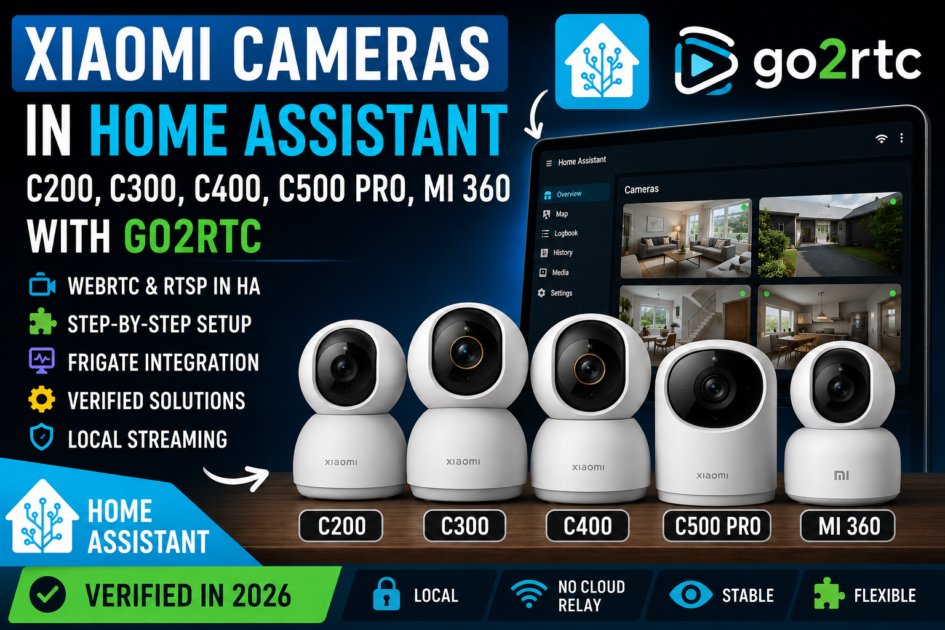

Xiaomi Cameras in Home Assistant in 2026: C200, C300, C400, C500 Pro, Mi 360, go2rtc and Frigate
Xiaomi cameras are inexpensive, widely available and perfectly usable inside Mi Home. The trouble usually starts when you want the same live video inside Home Assistant. In this guide we separate outdated workarounds from methods that are actually confirmed to work in 2026, then build a practical path from a Xiaomi camera to go2rtc, WebRTC, RTSP and Frigate.
This is not another collection of old Xiaomi token tricks, expiring cloud URLs or firmware hacks written for completely different camera generations. The focus here is on modern Xiaomi cameras, verified model identifiers, current go2rtc support and a configuration path that can be reproduced and diagnosed step by step.
The Xiaomi camera problem is really three separate problems
Discussions about Xiaomi cameras and Home Assistant often become confusing because several different questions are mixed together.
The first question is whether Home Assistant can discover the device. The second is whether Home Assistant can control selected Xiaomi properties. The third, and most important for this article, is whether we can obtain a usable live video stream.
Those are not the same thing.
A Xiaomi camera may appear correctly in Home Assistant while still providing no usable live video at all.
Camera controls available ≠ RTSP available
Mi Home playback works ≠ browser-compatible stream exists
Once we separate those layers, the whole subject becomes much easier to understand.
Why the official Xiaomi Home integration does not give you camera video
Xiaomi has an official Home Assistant integration called xiaomi_home. Depending on the exact camera and its MIoT specification, the integration may expose status information, switches and selected device functions.
What it does not provide is a normal live video feed.
Xiaomi has explained the reason directly. Camera video uses an encrypted P2P mechanism. The encryption key is negotiated between the Mi Home application and the camera, while the Home Assistant integration is not treated as a trusted client that can participate in the same key exchange.
If your C200, C300 or C500 Pro is visible in the official Xiaomi Home integration but there is no working live view, repeatedly removing and re-adding the integration will not solve the underlying limitation.
The official integration can still be useful for device properties and controls. It simply should not be confused with a camera streaming integration.
Why older Xiaomi camera guides are often misleading today
Before modern go2rtc support existed, users relied on several different approaches.
Some integrations requested temporary HLS addresses from Xiaomi cloud services. Others depended on internal API calls, extracted tokens or model-specific firmware modifications. Older Xiaofang and Dafang models developed an entire ecosystem of custom firmware and RTSP hacks.
None of those approaches should automatically be applied to a current C200 or C500 Pro.
Xiaomi Miot Auto, for example, could obtain cloud-generated stream URLs for some devices. In real deployments, users reported issues such as expiring URLs, streams ending after a few minutes, black video despite successful device discovery and model-specific incompatibilities.
That does not make Xiaomi Miot Auto useless. It simply means that in 2026 it should not be the first architecture chosen for live video if the camera is already supported natively by go2rtc.
The important change: native Xiaomi support in go2rtc
The biggest practical change came from go2rtc.
go2rtc is a multi-protocol streaming server used widely in the Home Assistant and Frigate ecosystem. It can receive a stream using one protocol and expose it to other clients using protocols that are easier to consume.
Xiaomi support appeared in go2rtc 1.9.13 and was expanded significantly in 1.9.14. The newer implementation added support for additional Xiaomi transport variants, improved account authentication, introduced more compatibility work for current models and expanded support for features such as two-way audio.
As of September 2026, 1.9.14 remains the current stable release used as the baseline for this guide.
↓
Xiaomi encrypted protocol
↓
go2rtc
↓
WebRTC / RTSP / MSE
↓
Home Assistant / Frigate / VLC / other clients
This is an important architectural detail.
go2rtc does not unlock a hidden RTSP server inside the camera. Instead, it speaks the Xiaomi-side protocol itself and then creates a stream that other software can use.
Is the stream local?
The answer is: partly.
Once a session has been established, the media connection to the camera is local. The video does not need to travel through a cloud video relay just to move from the camera to your go2rtc host.
However, go2rtc still needs Internet access when establishing the connection because it must obtain Xiaomi encryption keys.
If your requirement is a surveillance system that must keep operating after Xiaomi services disappear or Internet access is completely removed, a camera with native RTSP and ONVIF is still the stronger foundation.
Xiaomi with go2rtc is therefore especially attractive when you already own the cameras and want to reuse them inside Home Assistant rather than replace them.
Model names are not enough
One of the easiest mistakes is to rely only on the retail name printed on the box.
Xiaomi may sell cameras under the same or almost identical commercial names while using different internal hardware revisions.
go2rtc cares about identifiers such as:
chuangmi.camera.046c04
xiaomi.camera.c01a01
chuangmi.camera.039a04
chuangmi.camera.039c04
chuangmi.camera.061a03
That is why two people saying “I have a Xiaomi C400” may report different behaviour.
Confirmed Xiaomi camera models
go2rtc maintains a community-verified list of known Xiaomi cameras. Users are asked to report models that have actually been tested rather than simply adding everything that exists in Xiaomi’s catalogue.
The table below should therefore be treated as a compatibility starting point, not as a promise that every firmware revision will behave identically.
| Camera | Internal model | Confidence | Notes |
|---|---|---|---|
| Xiaomi Smart Camera C200 | chuangmi.camera.046c04 |
well confirmed | full-quality stream commonly uses subtype=3 |
| Xiaomi Smart Camera C300 | xiaomi.camera.c01a01 |
confirmed | isolated reports of reconnects or timeouts exist |
| Xiaomi Smart Camera C400 | chuangmi.camera.039a04 / 039c04 |
confirmed with caveats | check the hardware revision; HEVC behaviour can differ |
| Xiaomi Smart Camera C500 Pro | chuangmi.camera.061a03 |
confirmed | real-world go2rtc + WebRTC use is reported |
| Mi 360 Home Security Camera 2K Pro | chuangmi.camera.021a04 |
confirmed | HEVC + PCMA |
| Mi 360 Home Security Camera 2K | chuangmi.camera.029a02 |
confirmed | not the same device as the 2K Pro |
| Xiaomi Smart Camera C301 | mxiang.camera.c301 |
confirmed | newer generation |
| Xiaomi Smart Camera C701 | chuangmi.camera.079ae2 |
confirmed | HEVC + Opus |
| Xiaomi Outdoor Camera AW300 | mxiang.camera.mod13 |
confirmed with caveats | there are also reports of transport timeouts |
| Xiaomi Outdoor Camera CW400 | isa.camera.hlc8 |
confirmed | forcing SD can help in some cases |
| Xiaomi Outdoor Camera CW500 Dual-Lens | isa.camera.hlmax |
confirmed | multi-lens camera |
| Xiaomi Outdoor Camera CW700S | isa.camera.700sa |
confirmed | newer CS2-based implementation |
| Xiaomi Smart Camera 4 Dual Camera Edition | xiaomi.camera.082ac1 |
confirmed | multiple camera channels |
| Xiaomi Smart Camera 4 Zoom Edition | xiaomi.camera.083ac1 |
confirmed | CS2 over TCP |
Prepare the camera before touching Home Assistant
The cleanest setup starts with a camera that already works correctly in Mi Home.
Make sure you know which Xiaomi account owns the device and that the camera is reachable from the network where go2rtc will run.
It is also a good idea to reserve the camera’s IP address in your router.
For example:
192.168.10.81This address is only an example. Your network will use its own addressing scheme.
A DHCP reservation is usually preferable to randomly configuring static IP settings inside the camera because network addressing remains under central router control.
Installing go2rtc on Home Assistant OS
On Home Assistant OS, one practical route is the dedicated go2rtc add-on.
Open:
Add the AlexxIT add-on repository:
https://github.com/AlexxIT/hassio-addonsThen install and start:
go2rtcDevelopment builds can be useful when support for a brand-new model has not yet reached the stable branch, but they should not be the default starting point for an already-supported C200, C300 or C500 Pro.
Authenticate your Xiaomi account inside go2rtc
Open the go2rtc web interface and choose:
Sign in using the Xiaomi account that owns the camera.
Depending on the account, Xiaomi may request an e-mail or SMS verification code. CAPTCHA can also be part of the authentication process.
After successful login, go2rtc stores the account token and can discover Xiaomi cameras assigned to that account.
A configuration section may look similar to:
xiaomi:
  1234567890: V1:XXXXXXXXXXXXXXXX
Never paste the complete xiaomi: section into a public forum post, GitHub issue or Discord message. Redact account IDs, tokens, device identifiers and any other sensitive values before sharing logs.
Understanding the Xiaomi source URL
A generated or manually defined Xiaomi stream can look like this:
streams:
  living_room_xiaomi:
    - xiaomi://1234567890:[email protected]?did=9876543210&model=chuangmi.camera.046c04
There are several important parts in that address.
The numeric value identifies the Xiaomi account. The region must match the server region used by the account. The IP address points to the camera on the local network. did identifies the Xiaomi device and model identifies the exact hardware family.
Do not copy the example values blindly.
Stream quality and the subtype parameter
Xiaomi cameras can expose several stream profiles.
go2rtc understands values such as:
auto
sd
hd
0
1
2
3
4
5
A common assumption is that profile 1 means SD and profile 2 means HD. That works for some devices, but it is not a universal rule.
Xiaomi C200 is an important example because its full-quality profile is commonly exposed using:
subtype=3Do not automatically force profile 3 on every Xiaomi camera. Profile numbers can represent different parameters on older models.
Xiaomi C200: a practical configuration
The C200 is one of the most useful cameras to cover because it appears constantly in Home Assistant discussions.
The confirmed internal model is:
chuangmi.camera.046c04A high-quality stream can be defined like this:
streams:
  xiaomi_c200_hd:
    - xiaomi://YOUR_ACCOUNT_ID:REGION@CAMERA_IP?did=YOUR_DEVICE_ID&model=chuangmi.camera.046c04&subtype=3
With fictional sample values:
streams:
  xiaomi_c200_hd:
    - xiaomi://1234567890:[email protected]?did=9876543210&model=chuangmi.camera.046c04&subtype=3
If you want a lighter stream for a small dashboard card or detection pipeline, define another profile:
streams:
  xiaomi_c200_hd:
    - xiaomi://YOUR_ACCOUNT_ID:REGION@CAMERA_IP?did=YOUR_DEVICE_ID&model=chuangmi.camera.046c04&subtype=3

  xiaomi_c200_sd:
    - xiaomi://YOUR_ACCOUNT_ID:REGION@CAMERA_IP?did=YOUR_DEVICE_ID&model=chuangmi.camera.046c04&subtype=sd
Do not move straight to Lovelace after saving the configuration. First verify the stream directly inside go2rtc.
Xiaomi C300
The widely reported internal model for the standard C300 is:
xiaomi.camera.c01a01A basic stream definition:
streams:
  xiaomi_c300:
    - xiaomi://YOUR_ACCOUNT_ID:REGION@CAMERA_IP?did=YOUR_DEVICE_ID&model=xiaomi.camera.c01a01
The C300 is on the known-working list, but there are also individual reports of UDP timeouts and sessions reconnecting in particular environments.
That is a good reason to test for more than a few seconds.
Keep the stream open, restart the host later and verify whether the camera reconnects cleanly before you treat the setup as production-ready.
Xiaomi C400: check the revision first
The C400 deserves extra attention because at least two internal variants appear in compatibility reports:
chuangmi.camera.039a04
chuangmi.camera.039c04
Both have been reported as working, but the older revision also appears in reports involving HEVC decoding problems, stuttering and unstable playback in some client combinations.
A configuration for the newer revision may look like this:
streams:
  xiaomi_c400:
    - xiaomi://YOUR_ACCOUNT_ID:REGION@CAMERA_IP?did=YOUR_DEVICE_ID&model=chuangmi.camera.039c04
If your C400 identifies as 039a04, give browser compatibility and long-term stream stability extra attention.
Xiaomi C500 Pro
The C500 Pro uses:
chuangmi.camera.061a03Example:
streams:
  xiaomi_c500_pro:
    - xiaomi://YOUR_ACCOUNT_ID:REGION@CAMERA_IP?did=YOUR_DEVICE_ID&model=chuangmi.camera.061a03
This model is particularly interesting because users have independently reported successful go2rtc and WebRTC video while simultaneously lacking some desirable PTZ functionality through other Xiaomi integrations.
That distinction is important: receiving the image does not automatically mean that mechanical pan and tilt control is solved as well.
Mi 360 Home Security Camera 2K Pro
The confirmed model code is:
chuangmi.camera.021a04Common retail identifiers include:
MJSXJ06CM
BHR4193GL
Example configuration:
streams:
  mi360_2k_pro:
    - xiaomi://YOUR_ACCOUNT_ID:REGION@CAMERA_IP?did=YOUR_DEVICE_ID&model=chuangmi.camera.021a04
This model is one of the more reassuring cases because it has also been used as a stable comparison camera in troubleshooting reports involving less stable Xiaomi models.
Mi 360 Home Security Camera 2K
Do not confuse the standard 2K model with the 2K Pro.
The standard version uses:
chuangmi.camera.029a02Example:
streams:
  mi360_2k:
    - xiaomi://YOUR_ACCOUNT_ID:REGION@CAMERA_IP?did=YOUR_DEVICE_ID&model=chuangmi.camera.029a02
Test in go2rtc before adding anything to a dashboard
This is one of the most useful habits in the entire setup.
Troubleshooting becomes unnecessarily difficult when the first test is a Home Assistant dashboard card.
Stage 2. go2rtc authenticates the Xiaomi account.
Stage 3. go2rtc receives the camera stream.
Stage 4. Only now do we connect Home Assistant.
If the stream does not work in go2rtc itself, WebRTC cards and Lovelace configuration are not yet relevant.
Displaying the stream with WebRTC Camera
WebRTC Camera is a convenient way to present go2rtc streams inside Home Assistant with low latency.
Install it through HACS:
Then add the integration from:
If your go2rtc stream is called:
xiaomi_c200_hda simple card can use:
type: custom:webrtc-camera
url: xiaomi_c200_hd
With both high- and low-quality profiles:
type: custom:webrtc-camera
streams:
  - url: xiaomi_c200_hd
    name: HD
  - url: xiaomi_c200_sd
    name: SD
This allows users to switch between available profiles without duplicating the whole dashboard card.
H.265 can make a working stream look broken
Many newer Xiaomi cameras use H.265, also known as HEVC.
HEVC is efficient and makes excellent sense for camera streaming, but support on client devices and web browsers is less universal than H.264.
This can create a confusing situation:
At that point the Xiaomi connection may be completely healthy.
If H.265 is the actual compatibility issue, go2rtc can use FFmpeg to create an H.264 version:
streams:
  xiaomi_c200:
    - xiaomi://YOUR_XIAOMI_SOURCE

  xiaomi_c200_h264:
- ffmpeg:xiaomi_c200#video=h264H.265 to H.264 conversion costs CPU or hardware-accelerator resources. If your actual clients can play the original stream, keeping the original codec is usually more efficient.
Use RTSP as a diagnostic tool
go2rtc can expose its internal stream as local RTSP.
For a stream called:
xiaomi_c200_hda typical restream URL is:
rtsp://GO2RTC_HOST:8554/xiaomi_c200_hdOpen that address in VLC.
If VLC plays the stream reliably, the Xiaomi-to-go2rtc part of the pipeline is already working. A remaining problem inside Home Assistant is then more likely to involve browser playback, WebRTC negotiation or codec compatibility.
Creating a normal camera entity in Home Assistant
WebRTC Camera is primarily about efficient display and does not replace every use case of a standard Home Assistant camera.* entity.
If you need a classic camera entity, the go2rtc RTSP restream can be used with Generic Camera.
Go to:
Then use an RTSP source such as:
rtsp://192.168.10.10:8554/xiaomi_c200_hdThe address above is only an example. Replace it with the actual go2rtc host address.
Feeding a Xiaomi camera into Frigate
This is where go2rtc becomes especially useful.
Frigate already uses go2rtc internally for restreaming and live view. If your Xiaomi source is handled by a separate go2rtc instance, simply feed its RTSP restream into Frigate.
cameras:
  xiaomi_c200:
    enabled: true
    ffmpeg:
      inputs:
        - path: rtsp://192.168.10.10:8554/xiaomi_c200_hd
          input_args: preset-rtsp-restream
          roles:
            - detect
            - record
There is an important architectural principle here.
Do not make the dashboard, Frigate, VLC and every other consumer negotiate their own independent Xiaomi sessions when one go2rtc process can receive the camera once and distribute the result locally.
This makes the installation easier to troubleshoot and reduces the number of parallel connections to the camera.
Can Frigate record Xiaomi cameras?
Yes, provided the stream supplied by go2rtc remains stable.
From Frigate’s point of view, the local restream behaves like another media source.
The architectural limitation remains the same, however: a Xiaomi session still depends on Xiaomi’s key mechanism when a new encrypted connection is established.
That is why a technical ability to record Xiaomi in Frigate should not automatically be interpreted as the best design for a critical 24/7 security system.
Two-way audio
The Xiaomi source in go2rtc includes support for two-way audio.
WebRTC Camera can also request the microphone path:
type: custom:webrtc-camera
streams:
  - url: xiaomi_c500_pro
    mode: webrtc
    media: video,audio,microphone
Browsers only grant microphone access in a secure context, so HTTPS matters when using talk-back functionality through a web browser.
It is still wise to test the exact camera and client combination rather than assuming identical behaviour across the whole Xiaomi lineup.
PTZ is a separate problem
A motorised Xiaomi camera can provide video successfully while still lacking full mechanical pan-and-tilt control inside your chosen Home Assistant path.
It is also easy to confuse physical PTZ with digital pan and zoom inside a video card.
Digital movement only changes which part of an already-received image you are looking at.
It does not move the physical camera head.
go2rtc does not currently provide universal ONVIF-style PTZ control for every Xiaomi camera.
Some devices may expose movement commands through Xiaomi Home or MIoT-specific properties, but this is model-dependent and should be verified individually.
Dual-lens Xiaomi cameras
Newer Xiaomi models can contain more than one imaging channel.
go2rtc allows access to another camera channel using:
&channel=2For example:
streams:
  xiaomi_dual_primary:
    - xiaomi://YOUR_XIAOMI_SOURCE

  xiaomi_dual_secondary:
    - xiaomi://YOUR_XIAOMI_SOURCE&channel=2
This makes newer dual-camera devices particularly interesting because both viewpoints can be treated as separate streams in Home Assistant or Frigate.
Xiaomi Outdoor Camera CW400
The CW400 has been reported under:
isa.camera.hlc8It is on the known-working list, but there are practical reports where video only became usable after explicitly requesting the SD profile:
streams:
  xiaomi_cw400:
    - xiaomi://YOUR_ACCOUNT_ID:REGION@CAMERA_IP?did=YOUR_DEVICE_ID&model=isa.camera.hlc8&subtype=sd
This should be treated as a troubleshooting option, not as a mandatory setting for every CW400.
Xiaomi Outdoor Camera AW300
The AW300 appears under:
mxiang.camera.mod13It is a confirmed model, but there are also reports where the connection began successfully and later ended in an I/O timeout.
That distinction is useful.
It does not mean that every firmware build, network environment and hardware revision is guaranteed to be trouble-free.
Miloco and micam: a useful Plan B
Before native Xiaomi handling matured in go2rtc, another practical route appeared using Miloco and micam.
The architecture is roughly:
This approach has real-world use and should not be dismissed as a purely experimental hack.
But for a camera already handled directly by go2rtc, it adds unnecessary layers.
Plan B: Miloco + micam when direct Xiaomi support is missing or unreliable for a particular model
What about Xiaofang, Dafang and older Mijia cameras?
Older Xiaomi cameras belong to a different technical generation.
Some depend on legacy Xiaomi protocols or older TUTK variants. Their behaviour is less predictable than current CS2-based models.
Xiaofang and Dafang also have long-standing custom-firmware projects capable of exposing traditional RTSP and additional local services.
Those solutions can still be useful for the correct hardware, but they should not be mixed into a modern C200 or C500 Pro guide as if all Xiaomi cameras used the same architecture.
Not every Xiaomi camera is supported
There are also models explicitly reported as unsupported.
One example is:
chuangmi.camera.v6associated with one version of the XiaoBai Smart Camera Enhanced Edition.
That is why statements such as “all Xiaomi cameras work with go2rtc” should be avoided.
Many models produced after 2020 have a good chance of working because newer Xiaomi protocols became more consistent, but an untested model is still an untested model.
A troubleshooting workflow that actually saves time
Do not change five settings at once when the stream fails.
Work through the path in order.
1. Verify Mi Home first
If the camera itself does not work in Mi Home, Home Assistant is not yet the problem.
2. Verify Xiaomi login in go2rtc
Confirm that the account authentication succeeded and that the correct region is being used.
3. Verify the internal model
Do not guess from the retail name or a photograph of the device.
4. Check local reachability
Make sure the go2rtc host can actually reach the camera across the LAN or VLAN firewall.
5. Test inside go2rtc
If there is no video here, do not troubleshoot Lovelace yet.
6. Try the appropriate subtype
Test sd, hd or the profile known to work for your exact model.
7. Test RTSP in VLC
rtsp://GO2RTC_IP:8554/stream_name8. Only then investigate browser playback
If VLC works and the web card does not, codec and WebRTC compatibility become much more likely suspects.
Restart tests are part of the installation
A stream that works for thirty seconds during initial setup is not enough.
After the configuration appears correct, test what happens after:
restarting the go2rtc add-on,
power-cycling the camera.
In each case, the stream should recover without manually logging into Xiaomi again or editing configuration files.
For a camera intended for Frigate or longer-term recording, leave it running for several hours. A 24-hour stability test is even better.
The Internet-disconnection test
One of the most educational tests is to temporarily remove Internet access after the camera is working correctly.
Test two different scenarios.
First, remove Internet access while an already-established stream continues to run.
Second, remove Internet access and then force the Xiaomi connection to be established again.
The second scenario shows the real dependency clearly because key retrieval is required when creating a new encrypted session.
is not the same thing as
complete independence from Xiaomi infrastructure.
Security: do not expose go2rtc to the Internet
A typical go2rtc installation uses a web interface on port:
1984RTSP and WebRTC-related services may use ports such as:
8554
8555
Do not forward those ports directly through your router just because you want remote camera access.
Remote access should be solved at the Home Assistant or VPN layer while go2rtc remains an internal service.
Putting Xiaomi cameras in an IoT VLAN
Xiaomi cameras can live inside a dedicated IoT VLAN, but the firewall must still permit the communication required by your design.
The go2rtc host must be able to reach the camera locally.
The camera and Xiaomi-side authentication mechanisms also need the outbound access required for normal operation and key establishment.
↑
Xiaomi camera in IoT VLAN
↑ controlled local access through firewall
go2rtc / Home Assistant
↓
dashboard / Frigate / automations
The goal is controlled communication, not random port exposure.
Should you buy Xiaomi specifically for Home Assistant?
If you already own a C200, C300, C400, C500 Pro or one of the supported Mi 360 models, the answer is encouraging.
In 2026 these cameras are far more useful in Home Assistant than they were before native go2rtc support arrived.
If you are designing a security system from scratch, however, the answer changes.
For cameras that must record 24/7, work with an independent NVR, survive a full Internet outage and remain independent of vendor infrastructure, native RTSP and ONVIF are still preferable.
Xiaomi cameras make much more sense as existing hardware that can now be integrated properly, or as non-critical indoor cameras used for convenience and automation.
Where Xiaomi cameras work especially well in a smart home
Good examples include a workshop camera, a 3D printer monitor, a technical room, an indoor garage view, a pet camera, an additional room overview or a camera tile on a Home Assistant dashboard.
In those use cases, being able to reuse an inexpensive Xiaomi camera you already own is a major advantage.
Approaches I would not start with in 2026
I would not build a new installation around old token-extractor tutorials, manually refreshed HLS URLs, firmware intended for an unrelated Xiaofang generation or the assumption that every Xiaomi camera has a hidden RTSP service waiting to be enabled.
I would also avoid exposing go2rtc ports directly to the public Internet or converting every H.265 stream to H.264 before confirming that transcoding is actually necessary.
The modern path is much cleaner.
Recommended architecture for a supported Xiaomi camera
↓
Xiaomi C200 / C300 / C400 / C500 Pro / supported model
↓ local Xiaomi media session
go2rtc
├── WebRTC → Home Assistant dashboard
├── RTSP → Generic Camera
└── RTSP restream → Frigate
If the camera is not supported by the native Xiaomi source, then Miloco/micam or a model-specific legacy method becomes the next path to investigate.
Final installation checklist
☐ Camera works normally in Mi Home.
☐ DHCP reservation keeps its LAN address predictable.
☐ go2rtc sees the correct internal Xiaomi model.
☐ Video works directly inside go2rtc.
☐ Correct stream profile or subtype has been tested.
☐ RTSP restream works in VLC.
☐ WebRTC works on the actual client devices you use.
☐ Stream recovers after a go2rtc restart.
☐ Stream recovers after camera power loss.
☐ Stability has been tested for more than a few minutes.
☐ go2rtc ports are not exposed directly to the Internet.
☐ Xiaomi tokens and device identifiers are not published anywhere.
Conclusion
For years, the usual answer to “Can I use my Xiaomi C200 in Home Assistant?” was that the camera did not provide RTSP and therefore there was very little you could do.
That answer is no longer complete.
The official Xiaomi Home integration still does not provide live video because of Xiaomi’s encrypted P2P design and the way camera encryption keys are negotiated.
What has changed is go2rtc.
Modern go2rtc versions can communicate with many Xiaomi cameras directly and expose the resulting local stream through protocols that integrate naturally with Home Assistant and Frigate.
Models such as the C200, C300, C500 Pro and Mi 360 2K Pro now have real-world support reports, while models such as the C400 and AW300 also work but deserve more careful stability testing.
Compatibility still depends on the exact internal model, hardware revision, firmware, stream profile and codec.
The useful question in 2026 is therefore no longer:
The better question is:
“Which exact Xiaomi model do I own, and has that model been confirmed with the current go2rtc Xiaomi implementation?”
That difference turns a vague compatibility problem into something we can actually test, configure and troubleshoot.
“`
go2rtc Xiaomi Mi Home documentation
go2rtc Known Xiaomi Cameras list
go2rtc releases
Xiaomi Home features that will not be implemented
WebRTC Camera
Frigate go2rtc restream documentation
Home Assistant Generic Camera
Technical status checked for September 2026. go2rtc, Home Assistant and Xiaomi camera support continue to evolve, so newly released hardware should always be checked against the current compatibility list before purchase or deployment.
“`