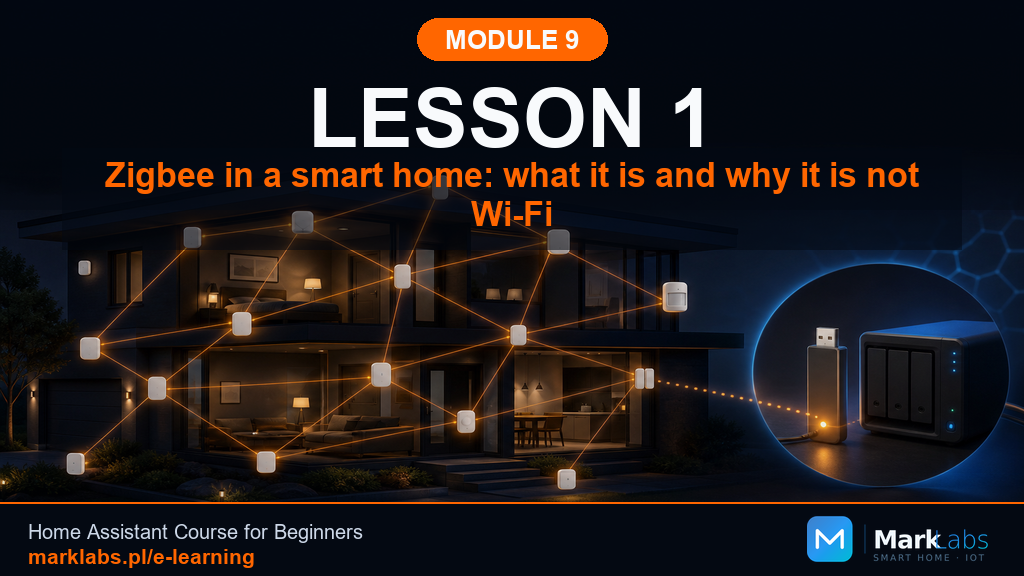
Zigbee in a Smart Home: What It Is and Why It's Not the Same as WiFi
With a secure, genuinely backed-up Home Assistant server from Module 8, it's finally time for your very first real devices. This lesson introduces Zigbee, a low-power wireless standard purpose-built specifically for smart homes, and explains exactly why it behaves nothing at all like the WiFi network you already know and use daily.
How Zigbee differs from WiFi
WiFi is built for throughput, streaming video, downloading files, moving large amounts of data quickly between your router and a handful of devices. Zigbee is built for the opposite problem entirely: hundreds of tiny, battery-powered sensors and switches sending small, infrequent messages, "motion detected," "temperature is 68," while sipping so little power that a single coin-cell battery can last a year or more. Where WiFi devices each connect directly back to your router, Zigbee devices form their own separate, self-organizing network that only touches Home Assistant through a single coordinator, covered later in this lesson.
A mesh network, explained plainly
A mesh network means devices don't all need a direct line back to a central point, instead, many of them relay messages for each other, hopping from device to device until a message reaches its destination. A motion sensor in a back bedroom might not reach your coordinator directly, but a smart plug in the hallway between them can relay that message along the way, entirely automatically, without you configuring anything. The more mains-powered devices you gradually add over time, the stronger and more reliable this entire mesh naturally becomes, a genuinely different mental model altogether from WiFi's single-hub-to-many-clients approach you're already familiar with.
Coordinator, router, and end device
Every Zigbee network has exactly one coordinator, a small USB or PoE device plugged into your Home Assistant server that acts as the network's brain and its single point of contact with the outside world. Mains-powered devices, smart plugs, in-wall switches, most bulbs, act as routers, both doing their own job and relaying messages for nearby battery-powered devices. Battery-powered devices, sensors, buttons, most battery-operated accessories, act as end devices, sending and receiving their own messages but never relaying for others, exactly the deliberate power-saving tradeoff that makes such genuinely long battery life possible for these devices in the first place.
The three roles, in a table
Coordinator: one per network, always mains-powered through your Home Assistant server, manages the whole mesh. Router: mains-powered devices like plugs and switches, relays messages, strengthens the mesh the more you add. End device: battery-powered sensors and buttons, sends its own data only, sleeps most of the time to conserve battery. Understanding which role a given device plays before you buy it is genuinely useful, a battery-powered "smart plug" doesn't exist for good reason, plugs are always mains-powered and always act as routers.
Low power: why Zigbee suits sensors
A WiFi-connected battery sensor typically lasts weeks at best, WiFi's constant connection overhead simply drains a small battery too quickly to be practical for a sensor you'd rather forget about. A Zigbee end device spends the overwhelming majority of its time in deep sleep, waking briefly only to send a reading or check for a rare incoming message, stretching a single coin-cell battery to a year or more in typical use. This is precisely why Zigbee, not WiFi, dominates the smart home sensor market, the underlying protocol was designed around exactly this constraint from the start.
Pairing and channel: two words to start with
Pairing is the one-time process of introducing a new device to your Zigbee network, typically a button press or reset sequence covered fully in Lesson 6. A channel is a specific radio frequency your entire Zigbee network operates on, chosen once during coordinator setup and, ideally, left alone afterward, covered in more depth in Lesson 8's discussion of interference. Keep both terms in mind, they'll come up constantly through the rest of this module.
An example: mini PC, coordinator, plug, sensor
Picture a typical Module 9 setup: your Home Assistant server, a small mini PC from Module 5, with a Zigbee coordinator plugged into a USB port. A smart plug in the living room joins the network and immediately becomes a router. A temperature sensor in a bedroom, too far for a direct connection to the coordinator, automatically routes its readings through that same living room plug without either device needing any manual configuration. This is the mesh working exactly as designed, invisibly, in the background, from the very first two devices you add.
Zigbee, 2.4 GHz WiFi, and your router: coexistence
Zigbee and 2.4 GHz WiFi share the same general radio frequency range, which sounds like a recipe for interference but generally isn't a practical problem for a typical household, both standards are specifically designed with channel selection to coexist reasonably well. Lesson 8 covers this in real depth, but the short version for now: choose your Zigbee channel away from your WiFi channel during coordinator setup, and don't worry about it further unless Lesson 9's troubleshooting guide points you back here specifically.
Which devices make sense to start with
A smart plug, a temperature and humidity sensor, and a motion sensor, exactly the trio Lesson 6 walks through pairing, are the ideal starting set: cheap, reliable, well-documented, and genuinely useful from day one. They also cover all three Zigbee roles this lesson introduced, the plug as a router, the sensors as end devices, giving you hands-on experience with the full picture before moving to more specialized devices in later modules.
What Zigbee does NOT do in this module
This module doesn't cover Zigbee light bulbs specifically, those get dedicated attention alongside other lighting devices in Module 20. It doesn't cover Zigbee locks, covered in Module 18's home security content. And it doesn't cover writing automations that react to these new devices, that's Module 11's job, entirely. This module's scope is deliberately narrow: get a coordinator working, choose a software path, pair your first three devices, and build the naming and mesh habits that make everything afterward easier.
A mini scenario: your first week with Zigbee
Day one: coordinator arrives, gets plugged in, Lesson 2 walks through placement. Day two: you choose between ZHA and Zigbee2MQTT in Lesson 3, then install your chosen path in Lesson 4 or 5. Day three: your first three devices pair successfully, showing live readings on your dashboard within minutes of unboxing them. By the end of the week, you have a small, working, genuinely reliable Zigbee network, and the rest of this module simply builds outward from that stable foundation.
FAQ: quick forum questions
Does Zigbee need internet to work? No, it runs entirely on your local network, functioning perfectly even offline. Can I mix brands? Generally yes, Zigbee is a shared standard, though a small number of devices use proprietary extensions, covered as they come up. Do I need a hub from the device manufacturer too? No, your Home Assistant coordinator replaces that hub entirely, one of the biggest advantages of this whole approach.
Exercise: a starter plan in your notebook
Open your "Home Assistant Server" notebook from Module 6 and start a new Zigbee section. Note which three specific starter devices you plan to buy, roughly where in your home each one will go, and whether you're currently leaning toward ZHA or Zigbee2MQTT before Lesson 3 helps you decide for certain. This takes just five minutes now and genuinely saves real indecision once the boxes actually arrive on your doorstep.
A real story: a motion sensor two rooms away
A reader in this course's community placed a motion sensor in a detached garage, easily forty feet from their Home Assistant server through two exterior walls, fully expecting it to fail to connect at all. It worked immediately and reliably, not because of any single powerful radio, but because a smart plug they'd already paired in a hallway partway between the two locations quietly relayed every single message for the sensor, entirely automatically, exactly the mesh behavior this lesson has carefully described above. Their honest, candid reflection afterward was that genuinely understanding the mesh concept before buying any devices at all, rather than after a device mysteriously failed to connect, changed how they thought about placement forever, favoring a handful of strategically placed mains-powered routers over simply hoping a single sensor's own small radio could somehow cover real distance entirely on its own.
Zigbee 3.0 and older device compatibility
Zigbee 3.0, the current unified version of the standard, consolidated several earlier, more fragmented Zigbee profiles into one interoperable specification, meaning nearly anything sold today as "Zigbee" works together regardless of brand. Very old devices, predating this unification, occasionally behave oddly on a modern coordinator, though this is now a genuinely rare situation for anything purchased in recent years. If you're starting from scratch, following this lesson's advice to buy new, well-reviewed devices sidesteps this entirely, it's genuinely only a real consideration for readers specifically repurposing much older, secondhand hardware they already happen to own.
Why not just use WiFi smart plugs instead
WiFi smart plugs exist and work fine for a handful of devices, but they consume WiFi network capacity and router connection slots directly, something that adds up meaningfully once you're running dozens of devices, exactly the scale this course is building toward across its remaining modules. Zigbee devices, by contrast, connect to your dedicated coordinator instead, adding zero load to your actual WiFi network regardless of how large your Zigbee mesh eventually grows, a genuinely important scaling advantage that becomes increasingly obvious the further along into this course you eventually go.
Genuine limits of Zigbee worth knowing upfront
Zigbee isn't right for everything, it's a poor fit for anything needing real bandwidth, cameras or streaming audio, and a single coordinator has a practical ceiling on total connected devices, generous for most households but worth knowing exists before an extremely large installation. It also depends entirely on your coordinator and Home Assistant server being online, a point Module 8's backup and emergency-plan lessons already prepared you for. None of these are reasons to avoid Zigbee, this course leans on it heavily for good reason, but knowing exactly where its edges are now avoids any real surprise for you later on.
How this module builds, week over week
This module is deliberately paced rather than crammed into a single sitting: hardware and software decisions first, three starter devices next, then naming, mesh health, and troubleshooting once you have real, live data to reason about rather than abstract theory. Resist the urge to buy a dozen devices before finishing Lesson 6, a small, well-understood starting network teaches you far more than a large, hastily assembled one ever could, and every later lesson in this module assumes you've actually lived with your first three devices for at least a few days.
Zigbee versus Z-Wave, briefly
Z-Wave is a similar mesh-based low-power standard, and readers occasionally ask why this course focuses on Zigbee rather than Z-Wave, or both. Zigbee generally offers a wider selection of budget-friendly devices and broader Home Assistant community support, while Z-Wave offers slightly more standardized interoperability testing and, in the US market specifically, operates on a frequency with less WiFi overlap. Both are legitimate choices, and Home Assistant supports Z-Wave devices alongside Zigbee ones without conflict if you ever want to mix them, but this course teaches Zigbee first since it's the more widely adopted, more affordable starting point for most readers building a first smart home from scratch.
Setting realistic expectations for Lesson 6
Most first-time Zigbee pairings go smoothly, a device joins within seconds and starts reporting data immediately, but it's worth expecting at least one small hiccup along the way, a device that needs a second reset attempt, a sensor that takes a minute longer than expected to show its first reading. This is entirely normal and genuinely not a sign anything is wrong with your setup, Lesson 6 covers the pairing process in careful, patient detail specifically because a calm, expected hiccup feels very different from an unexpected, alarming one.
Budgeting for your starter set
Between the coordinator from Lesson 2 and the three starter devices Lesson 6 pairs, expect a genuinely modest total outlay, well under the cost of a single name-brand hub-based starter kit sold at most big-box retailers, and with none of the recurring subscription fees some of those kits quietly require down the line. This is one of the quieter, less flashy benefits of the Home Assistant approach this entire course has been building toward, real, meaningful cost savings that compound quite significantly as your growing smart home expands across the many modules still ahead of you.
Where to buy your first Zigbee devices
Any major retailer carrying smart home products generally stocks a reasonable selection of Zigbee devices, and it's worth checking a device's own product page or community forums for explicit Home Assistant compatibility before buying, rather than assuming every device labeled "Zigbee" behaves identically well with ZHA or Zigbee2MQTT out of the box. A quick search for the exact model name alongside "Home Assistant" before purchasing takes only a couple of minutes and reliably avoids the rare device that turns out to need extra manual configuration steps well beyond what this particular module otherwise covers in detail.
Key takeaways
Zigbee is a mesh network built for low power, not throughput, unlike WiFi.
Coordinator, router, end device, three roles that define how your mesh grows.
Mains-powered devices strengthen your mesh, battery devices depend on it.
A plug, a temperature sensor, and a motion sensor make the ideal starting trio.
Lesson 2 covers choosing and very carefully placing your Zigbee coordinator, the one single piece of hardware everything else in this entire module ultimately depends on.